How to Install Snap Store on Chromebook
Yes, you can install Snap packages on Chromebook using the Snap Store.

The Settings path for turning on Linux has moved. It is now Settings > About ChromeOS > Developers > Linux development environment > Set up, not Advanced > Developers. The snapd commands are unchanged, but snaps can still fail in the Linux container without the squashfuse and fuse packages.
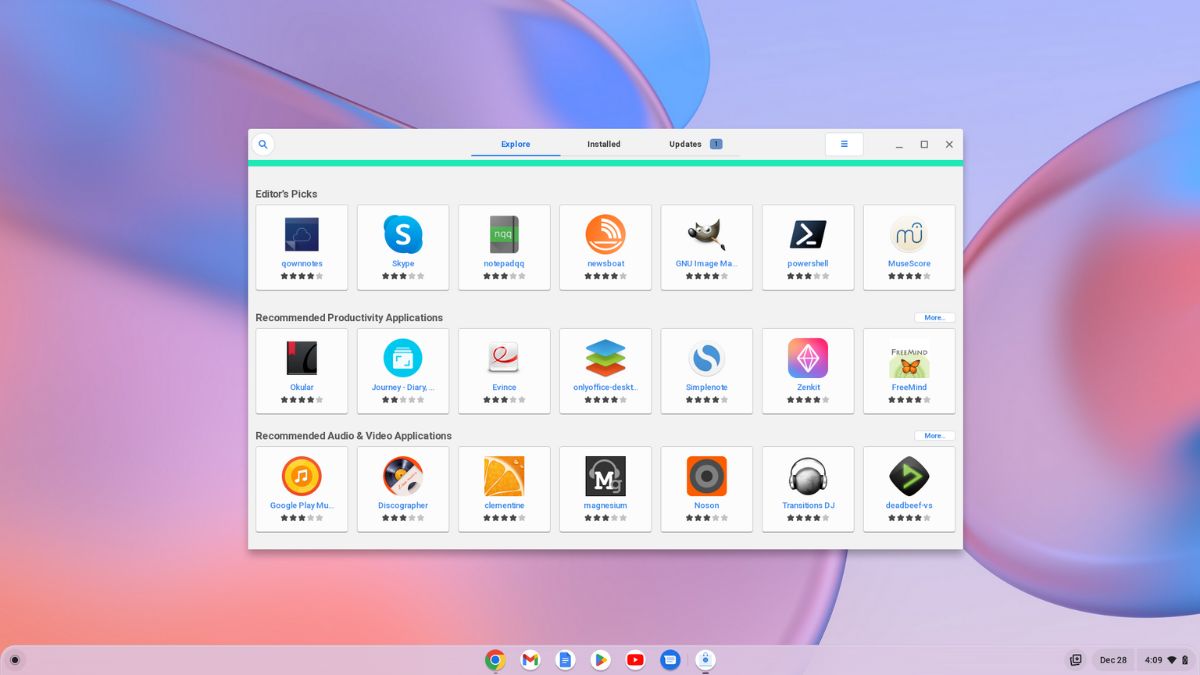
While the Chrome OS offers a wide range of applications through the Chrome Web Store and Google Play Store, you cannot install full-fledged desktop applications on your Chromebook. If you want to use a full-fledged desktop application on your Chromebook, you can install third-party app stores like Flatpak and Snap Store.
These are Linux package repositories for Linux-based operating systems. As Chromebooks support Linux applications through the Linux Development Environment feature, you can install Snap and use Linux applications on your Chromebook. Here’s how you can do so.
Enabling Linux Development Environment on Chromebook
Before we begin with the installation process of Snap Store, it is imperative to turn on the Linux Development Environment on your Chromebook. This will enable all the necessary dependencies for installing and running Linux applications on your Chromebook.
To enable the Linux Development Environment, you can follow these steps:
Step 1: Open Settings on your Chromebook.
Step 2: Here, click on the Advanced tab located on the left pane of your screen. Next, from the drop-down menu select the Developers option.
Screenshot not in the archive: Developers Option
Step 3: Now, click on the Turn On button to enable the Linux development environment on your Chromebook.
Screenshot not in the archive: Turn ON Linux Development Environment on Chromebook
After that, follow the on-screen instructions to set up the Linux environment on your Chromebook. Once you’re done, you’ll be ready to install and use any Linux application on your device.
How to Install Snap Store on Chromebook
To install the Snap App Store in Linux on your Chromebook, follow the steps mentioned below.
Step 1: Open the Linux terminal. For that, click on the App Launcher icon.
Step 2: Now look for the Linux app folder and click on the Terminal icon to open it.
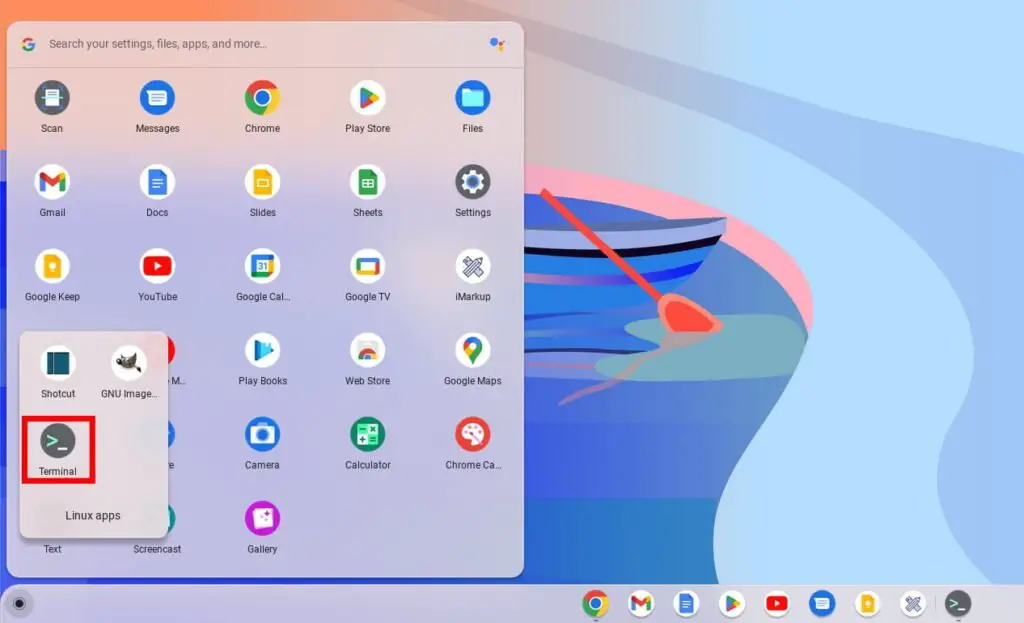
Step 3: You must first install the necessary dependencies for Snap Store before you can install it. Snaps, among other things, mount packages use FUSE and squashfs. When attempting to download and install a Linux application from the Snap App Store, you will see an error if you install the snap store without installing these dependencies. Run the following terminal command to install the dependencies:
sudo apt install libsquashfuse0 squashfuse fuseStep 4: After that, run the following terminal commands one after another:
sudo apt updatesudo apt install snapd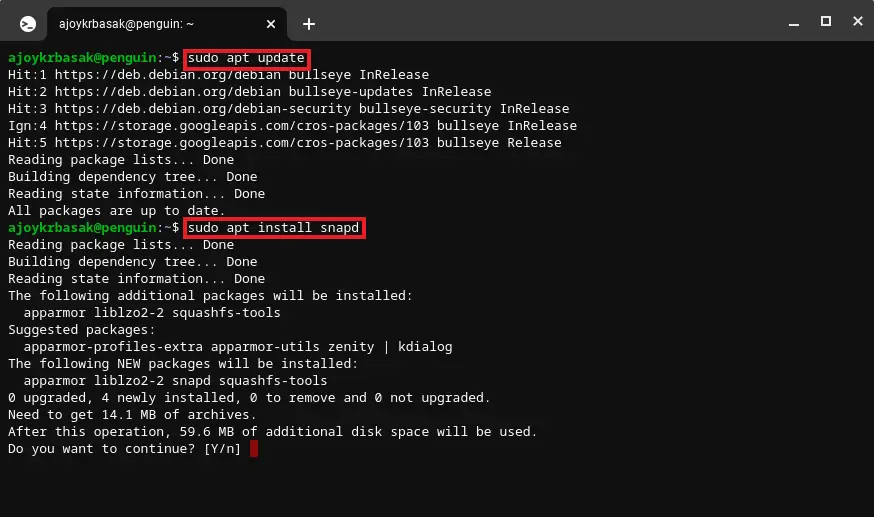
Step 5: If you encounter an error while installing the Snap Store, you can fix that. For that, you must first run “sudo su,” and after that, run the terminal commands below in this same chronology as we mentioned:
sudo susudo apt updatesudo apt install snapd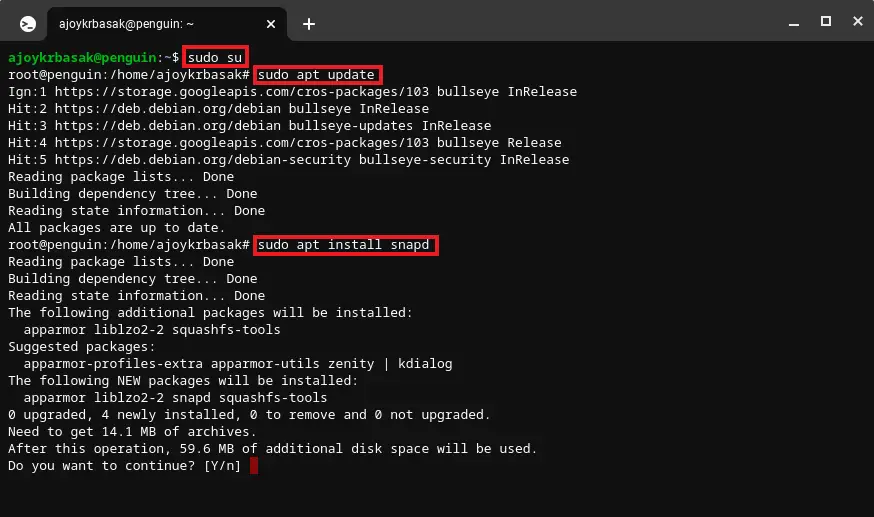
Note: This will only add Snap store repository support on your Chromebook. If you want to use the GUI of the app, you can follow the next steps.
How to Install Snap Store GUI
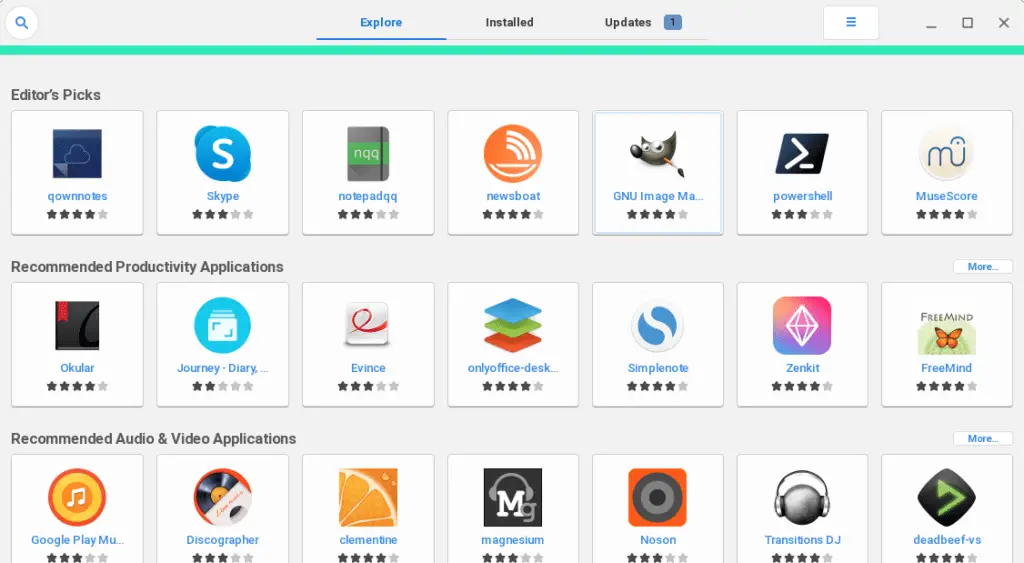
You can also install the GUI version of the Snap Store on your Chromebook. You can simply use the graphical user interface (GUI) of the app to browse and install the app. It will help you to install Linux apps without terminal commands.
For that, open the Linux terminal command and run the below-mentioned command:
sudo apt-get install gnome-software-plugin-snapHow to Install Linux App Using Snap Store
Now, let’s discuss how we can install a Linux app on a Chromebook from the Snap Store repository. There are two ways, one is by using the GUI of the app, and another one is by using the Linux terminal.
Let’s discuss them one by one:
1. Using the Snap Store GUI
To install a Linux app using the GUI, follow the steps mentioned below:
Step 1: Click on the App Launcher icon to open the app drawer.
Step 2: Here, locate the Linux apps folder. Then click on the store icon to open the Snap Store GUI.
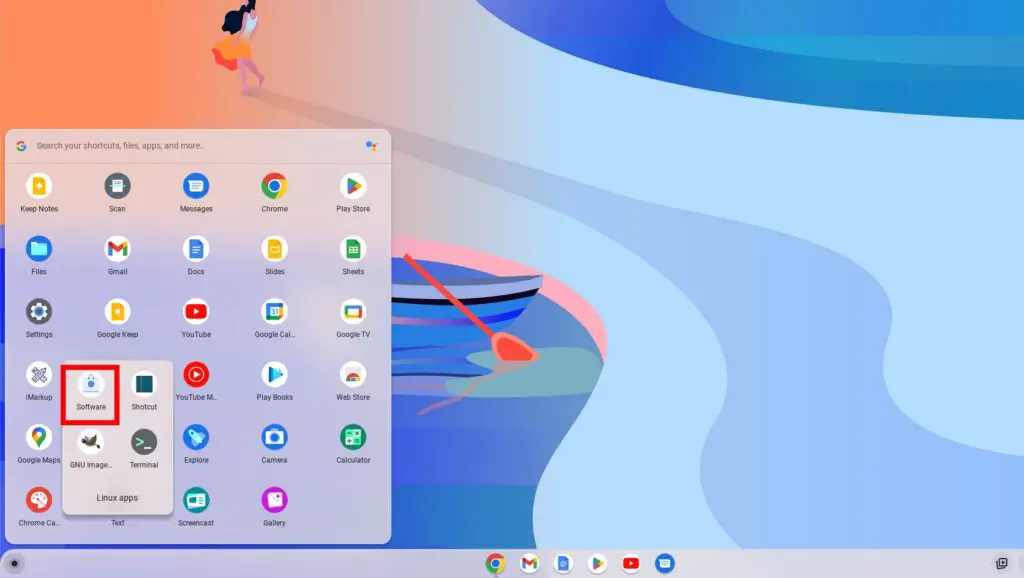
Step 3: Now, search for the Linux application you want to install.
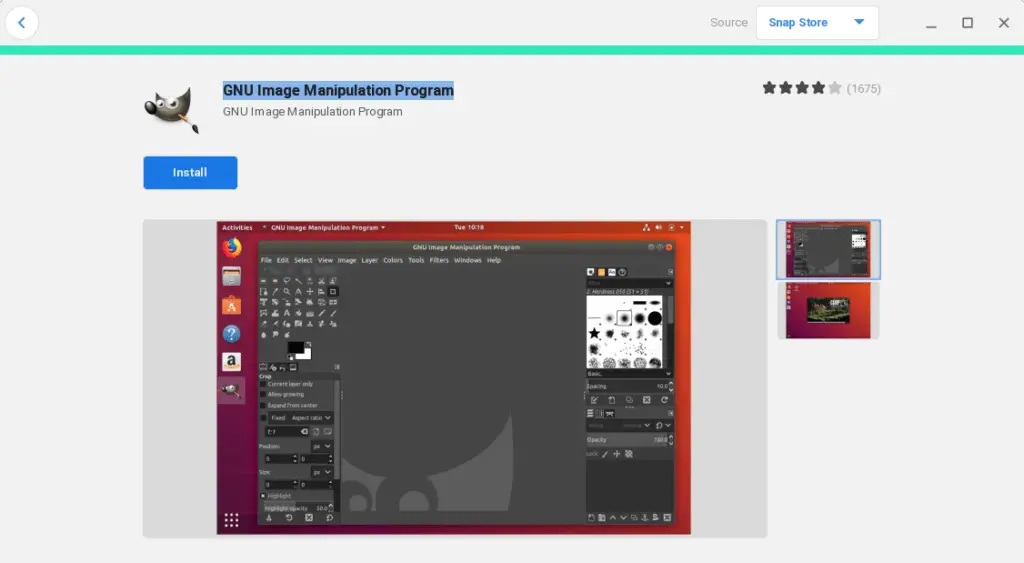
Step 4: Once you found the application, click on the Install button to install it.
2. Using the Terminal
Sometimes the GUI app does not work properly; you can use the Terminal to install Linux apps on your Chromebook. For that, follow the steps mentioned below:
Step 1: Open the Snap Store on your browser and find the Linux apps you want to install.
Step 2: After that, click on the Install button at the top-right corner, and you will get the command to install the app. Copy it and run the command in the Terminal.
Screenshot not in the archive: Snapcraft Website to Download App
Step 3: Open the Linux terminal and run the command you have copied. For instance, if you want to install VLC Media Player, run this command:
sudo snap install vlcStep 4: Once the application is installed you can run the below command to open it.
sudo snap run vlcScreenshot not in the archive: Terminal Command to Install VLC
Conclusion
That’s it! You’ve successfully installed Snap Store on your Chromebook, opening the door to a diverse range of Linux applications. Snap Store provides a seamless way to install Linux applications on your Chromebook beyond the Chrome Web Store and Google Play Store. Whether you’re seeking productivity tools, creative software, or utilities, Snap Store offers a convenient solution for expanding your software ecosystem on your Chromebook.
However, if you are not able to use the Snap Store on your Chromebook, then you can try out another package manager to install Linux apps using a GUI on your Chromebook. For that, check out our guide on how to install Flatpak on a Chromebook.

You did it!
You reached the end of this guide. Want to learn one more thing?

Written in 2022 for the ChromeOS and Chrome versions of that time, so menus may look different today. Restored from the Internet Archive copy of 2024-07-14. 4 of 10 screenshots were not saved by the archive; their captions are kept in the text.