How to Install Flatpak on Chromebook
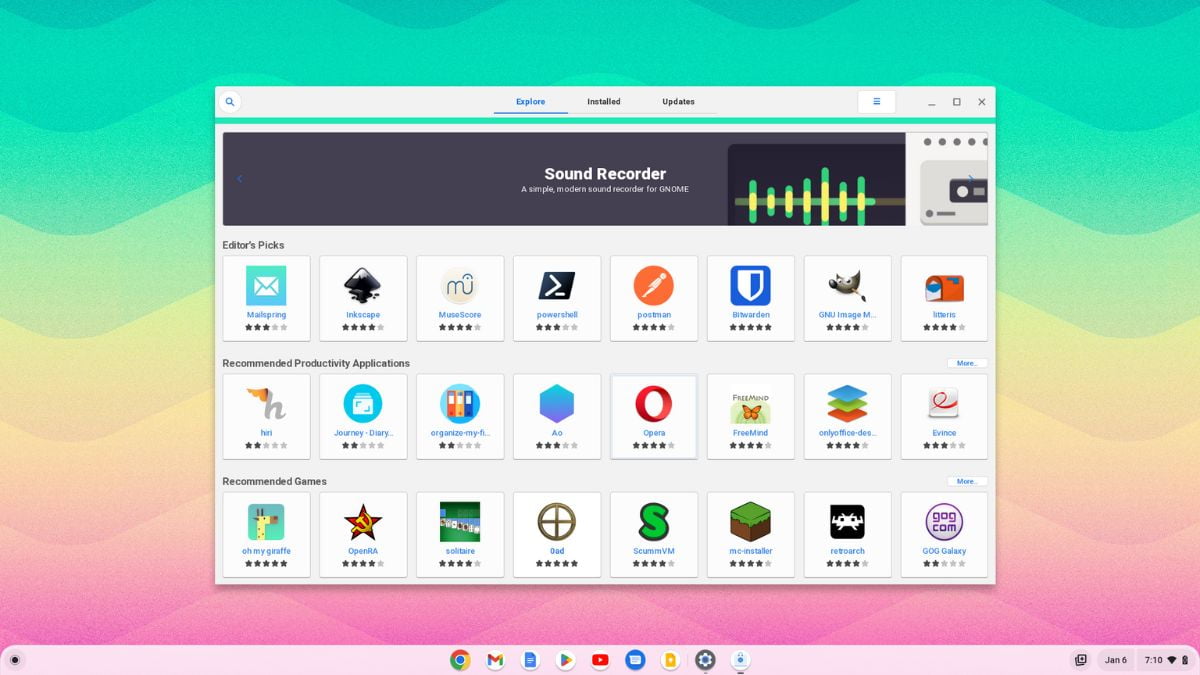
The Chromebook from Google is one of the revolutionary products today. One of its intriguing features is Linux support. You can install Linux apps on your Chromebook. However, to install Linux apps, you don’t have any proper Linux App Store installed on your Chromebook.
Fortunately, you can install it yourself. Here is a complete guide on how to install Flatpak on a Chromebook. Flatpak is renowned for its massive app repository for Linux systems. Unlike the Snap Store, you don’t need to install any dependencies. Before you install Flatpak, you need to enable the Linux development environment and then follow the guide. So, let’s dive in.
How to Install Flatpak on Chromebook
If you’re unsure why you need Flatpak, it contains a unique collection of necessary packages and sandboxing tools. Therefore, if you have it installed, you can access several helpful applications that are not included by default on your Chromebook.
Now, let us learn how to install Flatpak.
Step 1: Open the Linux terminal by clicking on the App Launcher icon. Look for the Linux app folder, and click on the Terminal icon to open it.
Screenshot not in the archive: Accessing Terminal from the App Launcher
Step 2: Now you need to run the following terminal commands one by one:
sudo apt install flatpaksudo flatpak remote-add --if-not-exists flathub https://flathub.org/repo/flathub.flatpakrepoNote: If you get a question; ‘Do you want to continue?’. Here, press the Y key to continue the installation process.
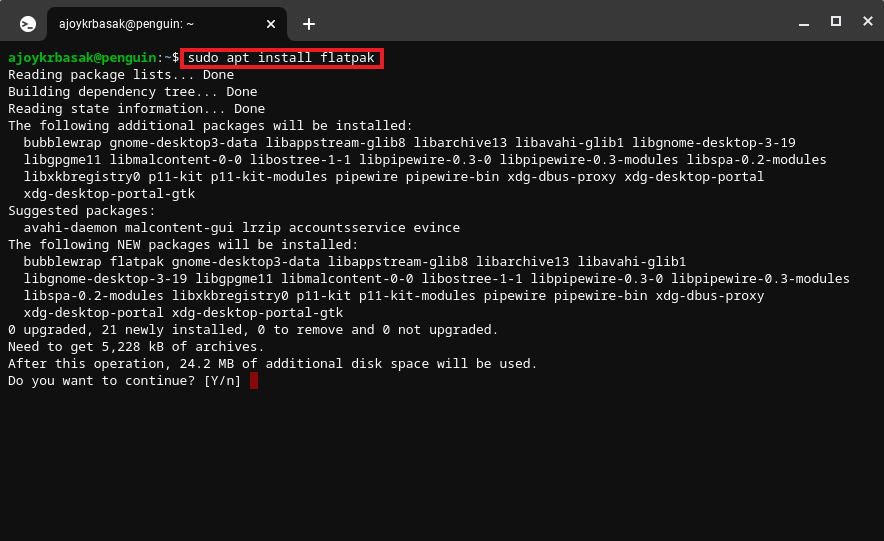
Step 3: You could sometimes get a notification that says Permission Denied. In that situation, you must execute a sudo su command. You should now have access to the root directory.
Step 4: Next, enter the following instructions one after another:
sudo susudo apt install flatpaksudo flatpak remote-add --if-not-exists flathub https://flathub.org/repo/flathub.flatpakrepo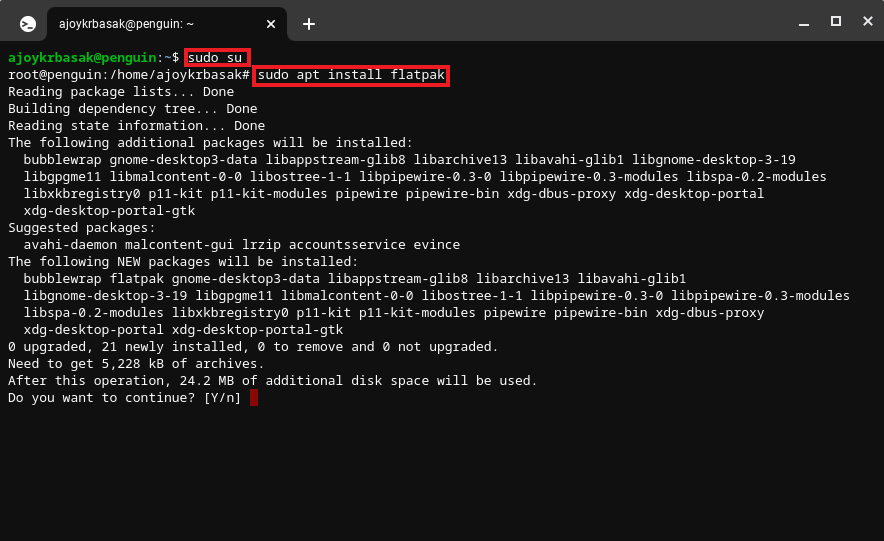
Following the above steps, you can install the Flatpak package manager on your Chromebook. However, if you want to install the app’s graphical user interface (GUI), you can follow the method below.
How to Install Flatpak GUI on a Chromebook
Screenshot not in the archive: Flatpak GUI
You can also install the GUI version of Flatpak on your Chromebook. Using the graphical user interface of the app, you can easily find, install, and manage Linux apps on Chrome OS without relying on terminal commands.
To do so, open the Linux terminal and run the below-mentioned command:
sudo apt install gnome-software-plugin-flatpakHow to Install Linux App Using Flatpak
Now, let’s discuss how we can install a Linux app on Chromebook from the Flatpak repository. There are two ways, one is by using the GUI of the app, and another one is by using the Linux terminal. Let’s discuss them one by one:
1. Using the Flatpak GUI
To install a Linux app using the GUI, follow the steps mentioned below:
Step 1: Click on the App Launcher icon to open the app drawer.
Step 2: Here, locate the Linux apps folder. Then click on the Software icon to open the Flatpak graphical user interface. Now you should get a fully functioning GUI store for Linux apps.
Screenshot not in the archive: Accessing Flatpak GUI from the App Drawer
Step 3: Now search for the Linux application you want to install. Once you found the application, click on the Install button to download and install it.
Screenshot not in the archive: Installing Opera Browser from the Flatpak
2. Using the Terminal
Sometimes the GUI app does not work properly; you can use the Terminal to install Linux apps on your Chromebook.
For that, follow the steps mentioned below:
Step 1: Open Flathub on your browser and discover the Linux apps you want to install. At the bottom, you will find the terminal command to install and run the app.
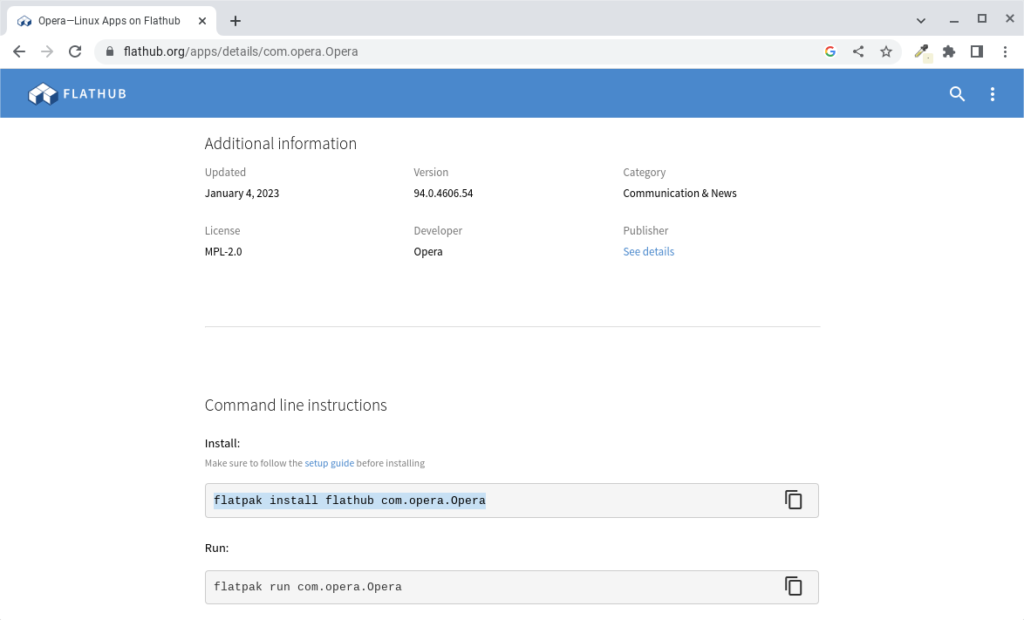
Step 2: Open the Linux terminal and paste the terminal command you have copied.
Step 3: Then press the [Enter] key to run the command. For instance, if I want to install Opera, run this command:
flatpak install flathub com.opera.OperaScreenshot not in the archive: Terminal Command to Install Opera on Chromebook
That’s it; this is how you can install Flatpak and install Linux applications on your Chromebook.
Conclusion
You’ve successfully transformed your Chromebook into a Linux-capable powerhouse by following our straightforward guide on installing Flatpak. Now equipped with an extensive range of Linux apps, your Chromebook’s capabilities have expanded.
If you’re interested in further diversifying your app options, you can install the Snap Store on your Chromebook instead of Flatpak. For that, you can check our guide on how to install the Snap Store on your Chromebook.

You did it!
You reached the end of this guide. Want to learn one more thing?

Written in 2023 for the ChromeOS and Chrome versions of that time, so menus may look different today. Restored from the Internet Archive copy of 2024-09-07. 5 of 8 screenshots were not saved by the archive; their captions are kept in the text.