How to Delete Apps From a Chromebook
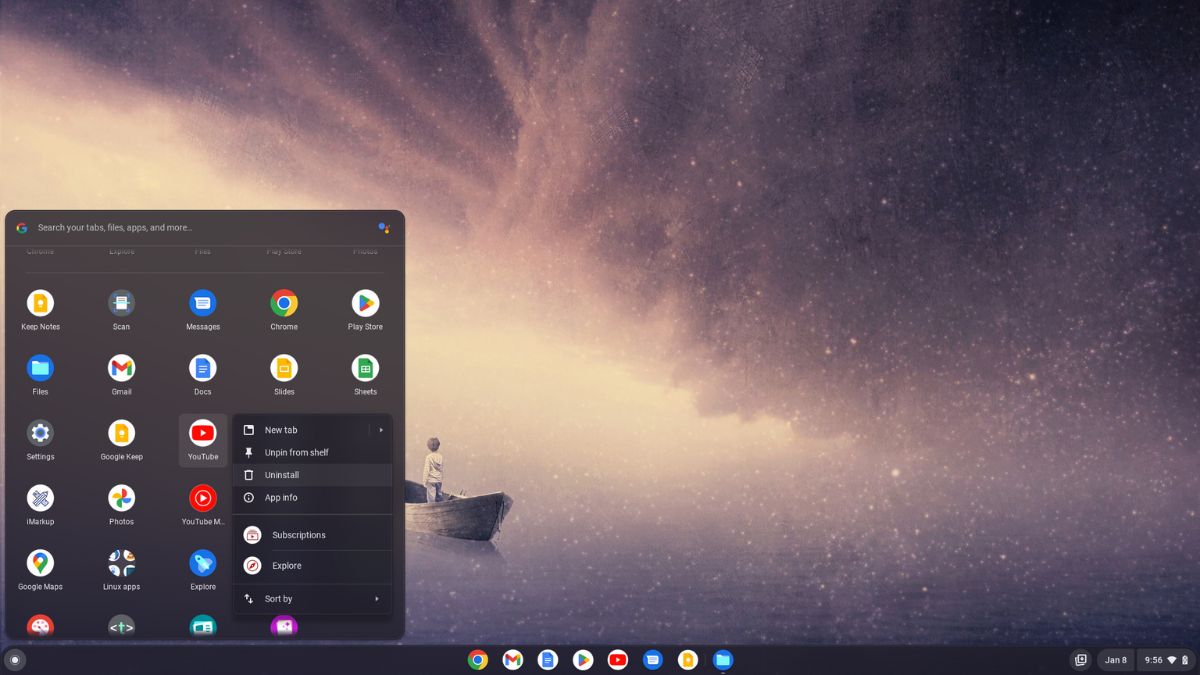
Chromebooks have become increasingly popular for their simplicity, speed, and security. While they mainly rely on web-based applications, users often download additional apps for a more personalized experience from the Google Play Store and Linux App, as the latest version of ChromeOS supports them.
However, as your needs change, you might want to remove the app from your Chromebook. Deleting unnecessary apps frees up storage space and ensures your Chromebook runs smoothly. In this guide, we’ll walk you through the straightforward process of deleting apps from your Chromebook.
How to Delete Apps From a Chromebook
The Chromebook is a simple yet powerful machine. It allows you to download and install Android, and Linux apps, and you can easily manage and delete apps in a few simple steps as often as you want.
If you find that you’re not using a particular app and it’s time to delete it, a Chromebook makes this an effortless process.
First, let’s discuss how to delete apps installed from the Chrome Web Store. The simplest method to delete those applications is from the app drawer. Follow the steps below:
Step 1: Click on the App Launcher icon and open the app drawer.
Screenshot not in the archive: Arrow showing to Open App Launcher
Step 2: You’ll see a list of all the apps on your Chromebook. If you’ve many apps, you’ll have to scroll up and down to view them all. Here, look for the app you want to delete.
Screenshot not in the archive: Chromebook Desktop
Step 3: Right-click on the app you want to delete. A context menu will appear, select the Uninstall button.
Screenshot not in the archive: App Uninstall Option on Chromebook
Note: On some Chromebooks, you may also see the Remove from Chrome option instead of Uninstall, especially if the application is installed from the Chrome Web Store.
This will remove the application and any data it may have stored from your device. Now, wait for the process to complete.
How to Delete Android Apps from a Chromebook
There are many ways to delete Android apps from your Chromebook. You can delete the apps from Settings and Google Play Store. These are the most common way to delete Android apps. Let’s discuss them one by one.
1. Using the Google Play Store
The simplest method to delete Android apps is through the Google Play Store. Because you installed it from there, right? Let’s delve into the steps for removing apps through the Play Store and explore how straightforward this process can be.
Step 1: Click on the App Launcher icon to open the app drawer.
Step 2: Now, look for the Google Play Store and open it.
Screenshot not in the archive: Accessing Google Play from the App Launcher
Step 3: It will open the Google Play Store. Here, click on your profile icon and click on the Manage apps & device option.
Screenshot not in the archive: Manage Apps on Google Play Store
Step 4: You will get the overview window; click on the Manage tab and select the Installed option.
Screenshot not in the archive: List of Install Apps on Chromebook
Step 5: To delete the app, choose the Android app you want to remove, then click on the Delete icon in the top right corner.
Screenshot not in the archive: Arrow Pointing to Delete Icon
2. Using Settings
You can also delete installed Android apps from the Settings app. Here are the steps you can follow to do so:
Step 1: On your Chromebook, open Settings.
Step 2: For that, click the Quick Settings Panel in the lower right corner of your screen. Then click on the gear icon to open the settings.
Screenshot not in the archive: Open Settings from Quick Menu
Step 3: The settings window will appear. Select the Apps tab on the left of your screen.
Step 4: Now from the right of your screen select the Manage your apps option.
Screenshot not in the archive: Manage Android Apps on Chromebook
Step 4: Here, you’ll get a list of Android apps installed on your Chromebook. Select the app you want to manage from the list.
Screenshot not in the archive: List of All the Installed Apps
Step 5: For instance, I want to delete the YouTube application. I will select it.
Step 6: In the next window, click on the Uninstall button. The option will remove the app from your Chromebook.
Screenshot not in the archive: Uninstall Android Apps from Chromebook
Conclusion
Keeping your Chromebook tidy and efficient is a breeze with these simple steps to delete apps. Whether you’re looking to free up storage space or streamline your digital workspace, removing unnecessary apps ensures that your Chromebook continues to deliver the fast, hassle-free experience it’s known for.
However, if you need the app, you can reinstall it. That’s it; this is how you can delete apps from a Chromebook. If you want to uninstall the Linux app you’ve installed using the Linux Development Environment, then you can check out our linked guide.

You did it!
You reached the end of this guide. Want to learn one more thing?

Written in 2023 for the ChromeOS and Chrome versions of that time, so menus may look different today. Restored from the Internet Archive copy of 2024-10-04. 11 of 11 screenshots were not saved by the archive; their captions are kept in the text.