How to Delete Google Web and App Activity on Chromebook

Google renamed Location History to Timeline and now stores it on your device, so it no longer appears next to Web & App Activity as the post shows. The My Activity menu labels such as 'Delete activity by' may also look different now.
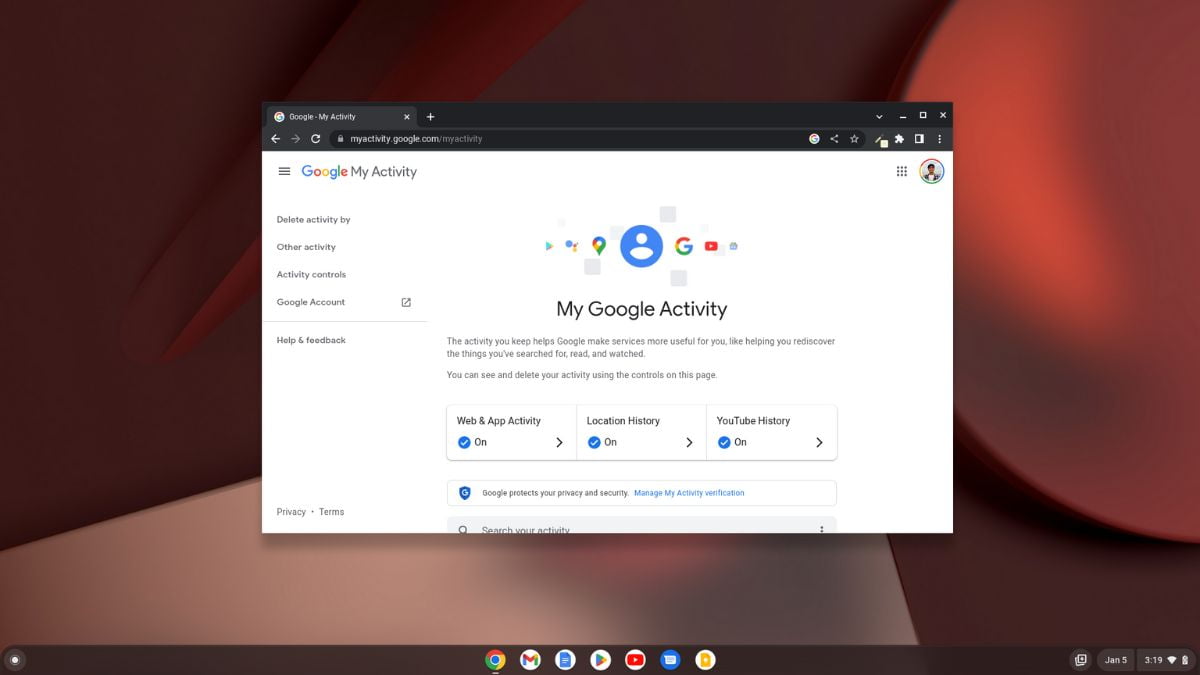
Do you know that Google keeps track of your activities on the Internet? It tracks your web and app activities to make searches faster and provide custom experiences in Google products such as Search, Maps, YouTube, and more. However, using the Google Incognito function and deleting your browser history will not keep your data safe.
Many people mistakenly believe that removing their web search history will be sufficient to keep them safe and confidential. Unfortunately, this is not the case. Your Internet Service Provider (ISP) and Google can still see your identity even when you use incognito mode. If you’re concerned about data privacy and want to prevent others from seeing your online activity, follow the guide until the end.
How to Manage Your Google Activity Controls
It is possible to turn off tracking. Google provides an option to disable Web and app Activity. Chromebook is a cloud-based operating system developed by Google, running on Chrome OS. Google applications are commonly used on Chromebooks, and these apps track Web and app activity.
Google Activity will persist in recording your search and browsing history unless you choose to disable it.
To turn off Google Web and App Activity on Chromebook, follow these steps:
Step 1: Open the Google Chrome browser and visit myactivity.google.com
Step 2: It will open the My Google Activity.
Step 3: Here, you can see your Web & App Activity, Location History, and YouTube History status. By default, all these options are turned on.
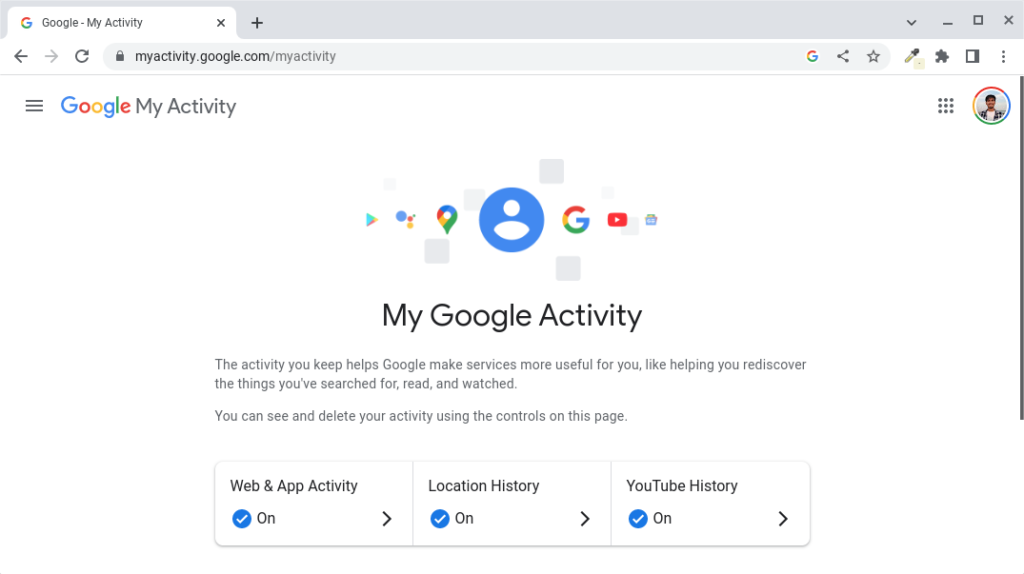
Step 4: To control your Google Activity. Click on the main menu option and select the Activity Controls option.
Screenshot not in the archive: Google Activity Controls Settings
Step 5: To disable all the activities, click the Turn Off button.
Screenshot not in the archive: Truning OFF Web & App Activity
Step 6: When toggled, you’ll receive a popup window where you need to confirm your choice by clicking the Pause button. Similarly, you can turn off all activities.
Screenshot not in the archive: Pause Web & App Activity
How to Delete Google Activity on Chromebook
The above steps will only turn off the activity tracker, providing you with a level of privacy by preventing further recording of your online activities.
However, if you’re looking to take a more comprehensive approach and wish to ensure the complete removal of your Google activity, including past records, follow the steps mentioned below.
Step 1: Open the Google Chrome browser and visit myactivity.google.com.
Step 2: Click on the main menu button and select the Delete activity by option.
Screenshot not in the archive: Deleting Google Web and App Activity
Step 3: It will take you to a page where you can delete your Google history by topic or product. Select All Time, then click the Delete button.
Screenshot not in the archive: Delete Activity by Time
Step 4: You will get the Deletion Complete window; now, to close it, click on the Got it button.
Screenshot not in the archive: Windows showing you the Deletion Complete Message
Conclusion
That’s it; this is how you can delete Google Web and App Activity on Chromebook. However, if you want to delete the browsing history from your Google Chrome browser, then you can follow our guide on how to delete browsing history on your Chromebook.
I hope this Chromebook guide was helpful to you. Moreover, if you have some suggestions or doubts, do not hesitate to leave them in the comments section. We’re always there to assist you.

You did it!
You reached the end of this guide. Want to learn one more thing?

Written in 2023 for the ChromeOS and Chrome versions of that time, so menus may look different today. Restored from the Internet Archive copy of 2024-08-08. 6 of 7 screenshots were not saved by the archive; their captions are kept in the text.