How to Use Whatsapp on your Chromebook
The WhatsApp Android app now works on Chromebooks. Here's how you can install and use it.
All the latest Chromebooks come with built-in Android support, empowering the Google Play Store and allowing you to download and install Android applications. If you’re interested in getting WhatsApp on your Chromebook, you can easily install it. WhatsApp is among the most popular apps on Android.
This service is not limited to smartphones alone. With the support of the Play Store, you can use WhatsApp on your Chromebook. Here’s a complete guide on how to install and use WhatsApp on your Chromebook.
How to Use Whatsapp on your Chromebook
There are two ways to use Whatsapp on Chromebook. One is by using the Android application, and the other by using the Whatsapp web. Let’s discuss them one by one.
1. Using Whatsapp Web
First, let’s discuss how we can use the Whatsapp web version on Chromebook.
Step 1: First, open the Google Chrome browser on your Chromebook.
Step 2: Then Open a new tab.
Step 3: Visit web.whatsapp.com and you will get the Whatsapp web interface.
Screenshot not in the archive: Google Chrome Interface
Step 4: To Use Whatsapp web on your Chromebook. You have to scan the QR code which is showing on your screen.
Screenshot not in the archive: WhatsApp Web QR Code
Step 5: To scan the QR code, follow the following steps:
- Open WhatsApp on your phone
- Tap Menu or go to Settings and select Linked Devices.
- Tap on Link a Device
- Point your phone to the screen and scan the QR code.
Now, you’re ready to use WhatsApp on your Chromebook. Yes, you can use WhatsApp simultaneously on your Android phone and Chromebook. Just make sure both devices are connected to the internet.
2. Using Whatsapp Android App
However, if you don’t want to use the WhatsApp web on your Chromebook, you can download and install the dedicated Android app version of WhatsApp.
For that, you need to enable the Google Play Store on your system. We already have a detailed guide on it; you can follow the linked guide.
After that, follow the steps mentioned below:
Step 1: Click on the App Launcher icon to open the app drawer.
Step 2: Here look for Google Play Store and open it.
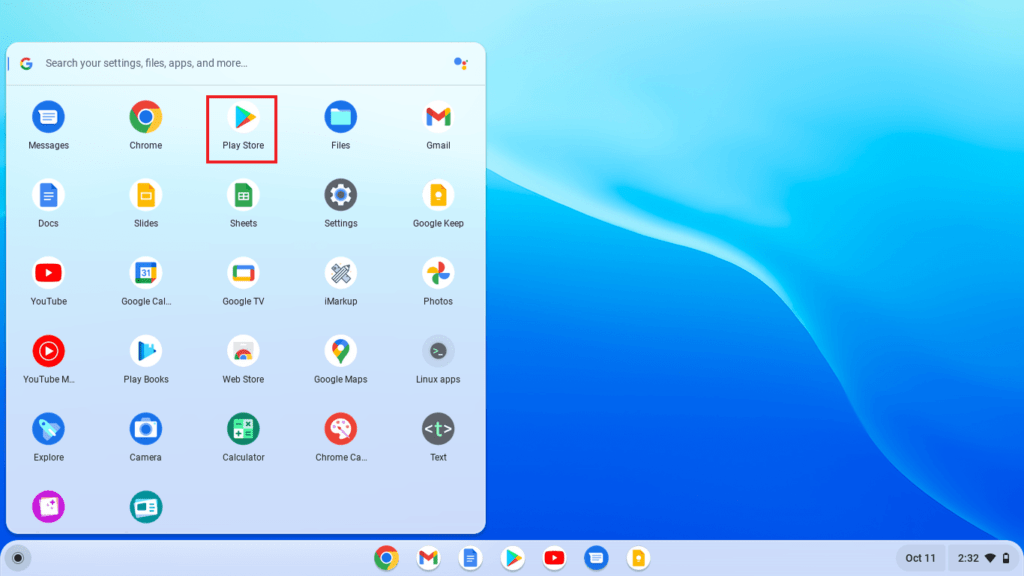
Step 3: It will open the Google Play Store. Here, search for WhatsApp on the search option.
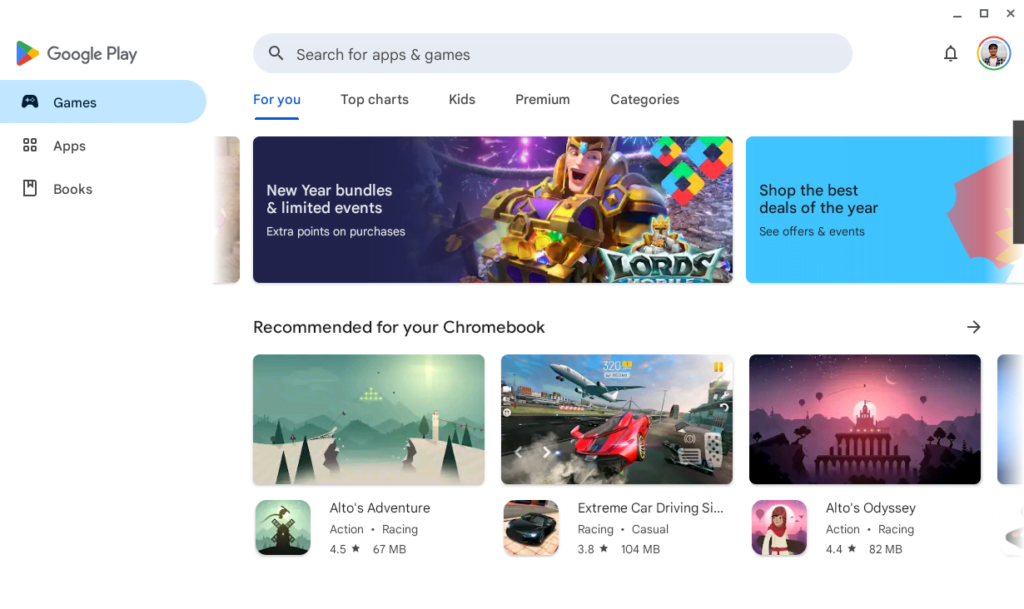
Step 4: Select WhatsApp from the search result and click the Install button to download and install the app on your system.
Screenshot not in the archive: Install WhatsApp on Chromebook
Step 5: Now, wait for the process to complete. Once the installation is complete, click on the Open button to open it. Or you will get the app icon on the app drawer.
Screenshot not in the archive: Open WhatsApp
Step 6: It will open the Whatsapp app. You have to choose your language and click on the Next button to get started with WhatsApp.
Screenshot not in the archive: Choose Language
Step 7: Click the Agree and Continue button to continue with WhatsApp.
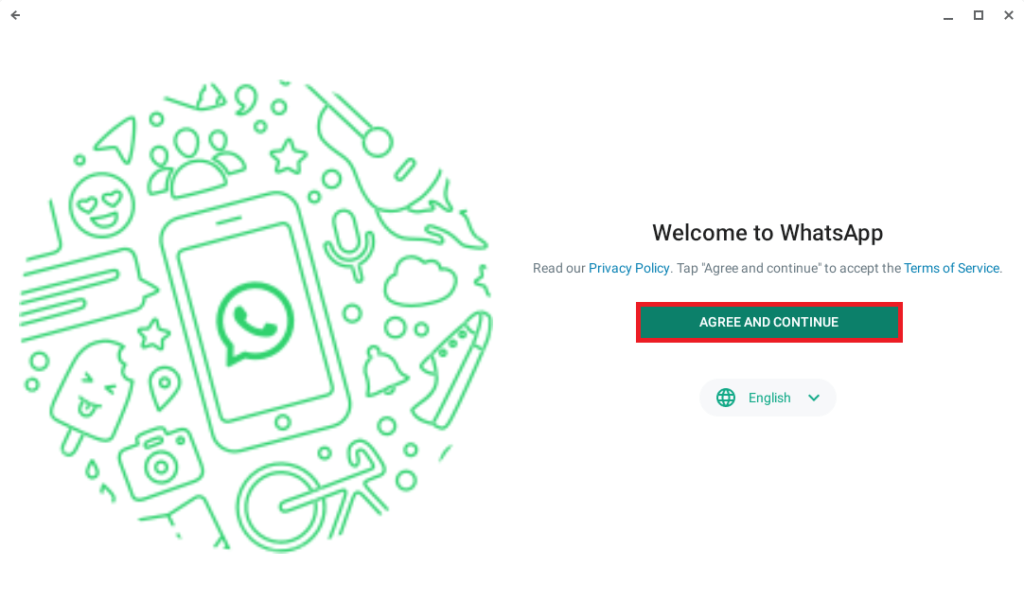
Step 8: To use WhatsApp on your Chromebook, you have to scan the QR code displayed on your screen. To scan the QR code, follow the instructions provided on the display screen:
Screenshot not in the archive: WhatsApp QR Code with Instructions to Link with your Phone
Step 9: After that, you’re ready to use WhatsApp on your Chromebook.
Screenshot not in the archive: WhatsApp Chat
Conclusion
Using WhatsApp on your Chromebook opens up new possibilities for seamless communication. Whether you choose the web version or the dedicated Android app, the integration of WhatsApp with Chromebooks, supported by the Google Play Store, enhances the user experience.
That’s it! This is how you can use WhatsApp on your Chromebook. Additionally, if you are new to Chromebook and Chrome OS, you can check out our Chromebook troubleshooting guide. We hope this Chromebook guide was helpful to you.

You did it!
You reached the end of this guide. Want to learn one more thing?

Written in 2023 for the ChromeOS and Chrome versions of that time, so menus may look different today. Restored from the Internet Archive copy of 2024-08-08. 7 of 10 screenshots were not saved by the archive; their captions are kept in the text.