How to Remove a User Account on Chromebook

Removing an extra Google Account now goes through Settings > Accounts, then the menu next to the account under 'Additional accounts' > Remove this account. The 'Currently signed in' step no longer exists. Removing a user from the sign-in screen was not re-checked.
If you want to add a new user account on your Chromebook, you can check our detailed guide on; how to add a new user account on a Chromebook. But here, we will discuss how we can remove a user account from Chromebook.
If the added user account is not required anymore, you can remove it from your Chromebook. For that, you can follow the guide till the end.
How to Remove a User Account on Chromebook
To remove the unused user account from your Chromebook, follow the below-mentioned steps:
Step 1: First, turn on your Chromebook to access the login screen before creating a user account. If you are already logged in, click the “Sign Out” button on the quick settings panel.
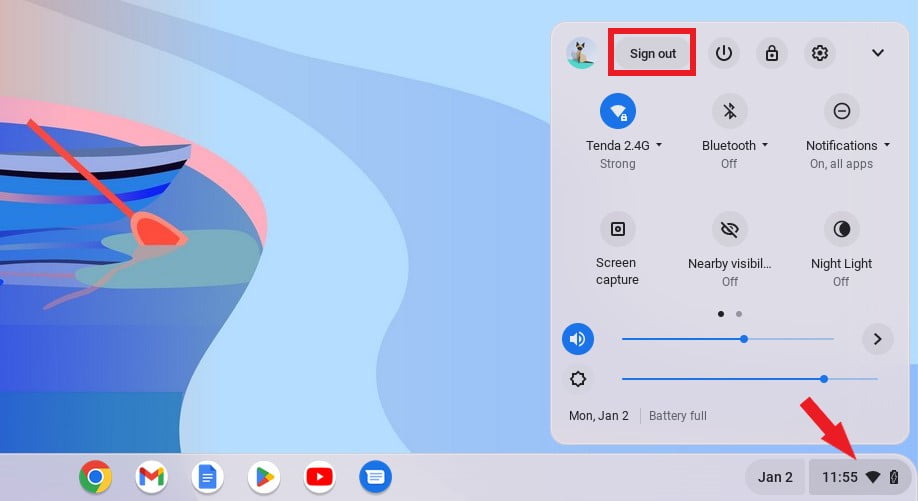
Step 2: After that, locate the account you want to remove and click on the down arrow next to it.
Step 3: You’ll get an option to “Remove Account” button. Click on it and confirm to remove the account and everything associated with it, including files and local data.
Screenshot not in the archive: Log In Screen on Chromebook
How to Remove an Additional Google Account from Chromebook
If you have an additional Google account added to your Chromebook, you can also remove it. For that, follow the steps mentioned below:
Step 1: Click on the “App Launcher” and select the “Settings” application. You can also open “Settings” from the quick settings panel.
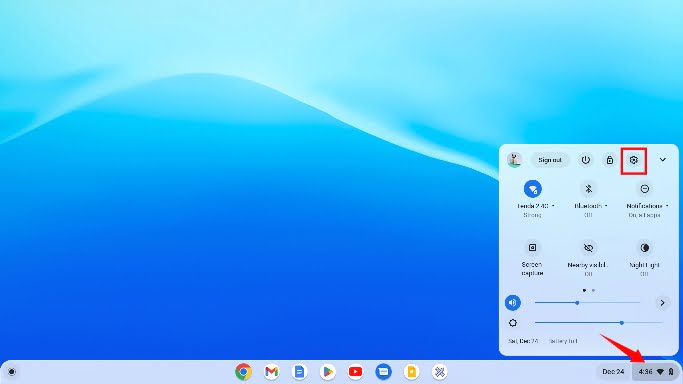
Step 2: The settings window will appear. Select the “Account” tab on the left of your screen. Then from the right of your screen, select the “Currently Signed” option.
Screenshot not in the archive: Accounts Settings
Step 3: To remove the additional account, simply click on the three-dots menu on the right, and select “Remove this Account” as seen below.
Screenshot not in the archive: Chromebook Settings to Remove Account
Conclusion
That’s it; this is how you can remove a user account on Chromebook. If you are a new user of ChromeOS, then we suggest you check out our other Chromebook guide and Google Chrome guide.
I hope this Chromebook guide was helpful to you. If you liked the article, share it with your friends. If you have some suggestions or doubts, do not hesitate to leave them in the comments section. We are always there to assist you.

You did it!
You reached the end of this guide. Want to learn one more thing?

Written in 2023 for the ChromeOS and Chrome versions of that time, so menus may look different today. Restored from the Internet Archive copy of 2023-06-08. 3 of 5 screenshots were not saved by the archive; their captions are kept in the text.