How to Manage Extensions in Google Chrome

Chrome's menu path has changed. Extensions is now its own item in the three-dot menu (Extensions > Manage Extensions) and is no longer under More tools. chrome://extensions and the toggle and Remove buttons still work as described.
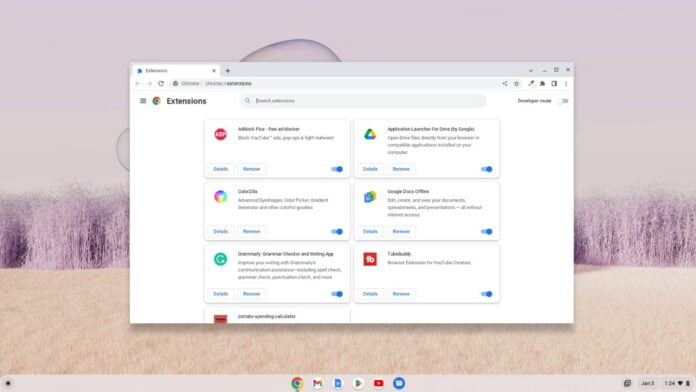
You can add/install Chrome extensions on your Chromebook to enhance your browsing experience. Once you have installed Google Chrome extensions on your Chromebook, you can manage the extensions from the extension page settings.
Here is our complete guide on; how we can manage the installed Google Chrome extension on your Chromebook. If you don’t have an idea to install extensions, then you can check our detailed guide on; how to Install Google Chrome Extensions on Chromebook.
How to Manage Extensions in Google Chrome
Now to manage all the installed extensions on Google Chrome. Simply, follow the following steps:
Step 1: Open the extension page. To open the extension page, click the menu icon (three dots) at the top right of Chrome, and select the “More Tools” option. Then click on the “Extensions” option from the context menu.
You can also click on the extension icon on the toolbar and click on “Manage Extensions” or visit chrome://extensions
Screenshot not in the archive: Accessing Extension Settings on Chrome
Step 2: You will find all the extensions installed on your Chrome. Here, find the extension; you want to manage, and click on the “Details” button to manage site access and other permissions.
Screenshot not in the archive: Chrome Extension Settings Page
Step 3: Now, if you want to disable the extension for the google chrome browser, you also can do it. To disable the extension temporarily simply “turn off” the toggle next to the extension name.
Screenshot not in the archive: Manage Extensions in Google Chrome
Step 4: If you want to remove the extension, you need to click on the “Remove” button. A pop-up window will appear, here click the “Remove” button again to confirm your action.
Screenshot not in the archive: Removing Extensions from Google Chrome
Conclusion
That’s it; this is how you can manage the installed Google Chrome extensions on your Chromebook. You can also check out our Chromebook troubleshooting guide if you are new to Chromebook and Chrome OS.
I hope this Google Chrome guide was helpful to you. If you liked the article, share it with your friends. If you have some suggestions or doubts, do not hesitate to leave them in the comments section.

You did it!
You reached the end of this guide. Want to learn one more thing?

Written in 2023 for the ChromeOS and Chrome versions of that time, so menus may look different today. Restored from the Internet Archive copy of 2023-06-08. 4 of 4 screenshots were not saved by the archive; their captions are kept in the text.