How to Change Background Wallpaper on Chromebook
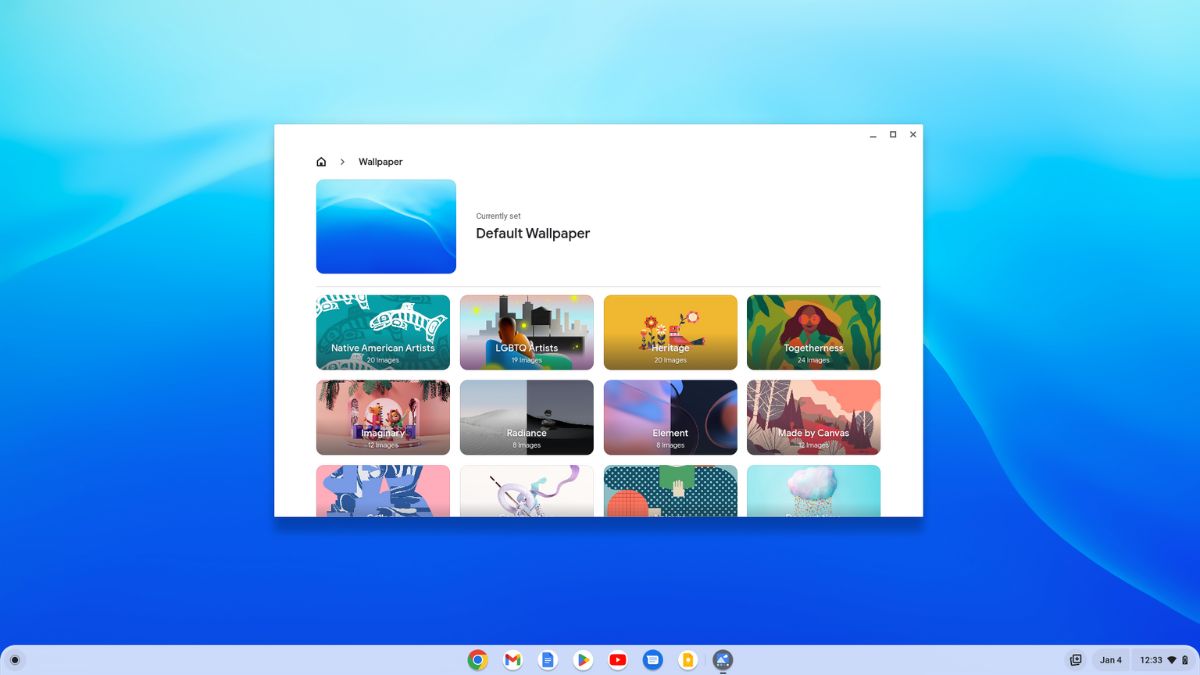
Are you looking to give your Chromebook a fresh new look? Changing the background wallpaper is a simple and effective way to personalize your device and make it feel more like your own.
Whether you want to set a serene landscape, an inspiring quote, or your favorite family photo as your background, this guide will walk you through the process of changing the wallpaper on your Chromebook. So, let’s get started.
How to Change Background Wallpaper on Chromebook
If you want to personalize your Chromebook, one of the easy and effective ways is to change the background wallpaper. It only takes a few clicks to make the change.
You can use any image or photo you have as the wallpaper on your Chromebook, or you can choose from one of the built-in backgrounds.
Here we will discuss two methods for changing the background wallpaper on your Chromebook. Let’s go through them one by one.
1. Using a Pre-installed Wallpaper App
The Chromebook comes with a built-in wallpaper app in its latest version of ChromeOS. By using it, you can easily manage and change the background wallpaper on your Chromebook with just a few clicks.
Here are the steps to change the wallpaper on your Chromebook using the pre-installed wallpaper app:
Step 1: Turn on your Chromebook. After that, on your desktop, right-click on the empty area.
Step 2: A menu will appear; select the Set Wallpaper & Style option from the menu.
Screenshot not in the archive: Highlighting Set Walllpaper & Style from the Context Menu
Step 3: This will open the wallpaper app. Here, click on the arrow next to the Wallpaper section.
Screenshot not in the archive: Wallpaper Selection Window
Step 4: In the next window, you will find a ton of high-quality desktop backgrounds for free. These are categorized – into a specific group, e.g., Cityscapes, Illustrations, Abstract, etc.
Step 5: Click on a category to browse images grouped within it. Now, click on an image you like to set it as your background wallpaper.
Screenshot not in the archive: Wallpaper App on Chromebook
Step 6: If you want to change the background daily, you can switch the image from the same category by clicking the Change Daily button.
Screenshot not in the archive: Daily Wallpaper Change Option
That’s it! This is how you can change your wallpaper using the built-in wallpaper app. However, if you want, you can also set your own images as wallpaper by following the methods below.
2. Set Custom Chromebook Wallpaper
If you want to set a custom image as your Chromebook wallpaper instead, make sure the image you wish to use as your wallpaper on your Chromebook; is saved on the device as the first step.
If not, find a great wallpaper online and download it to your Chromebook. Once that’s sorted out, you can follow these steps to change the wallpaper.
Step 1: Click on the App Launcher icon to open the app drawer. Here, look for the Files app and open it.
Screenshot not in the archive: Accessing Files From the App Drawer
Step 2: Visit the location where you have your images.
Step 3: Once you find the image, right-click on the image and select Set as Wallpaper from the context menu to set the image as the background.
Screenshot not in the archive: Change Background Wallpaper on Chromebook
Conclusion
Personalizing your Chromebook’s background wallpaper is an easy way to make your device reflect your style and preferences. With just a few simple steps, you can transform the look and feel of your device and infuse it with your unique personality. So go ahead, explore the options, and give your Chromebook a fresh new vibe.
That’s it; this is how you can change the wallpaper on your Chromebook. We hope this Chromebook guide was helpful to you. However, if you have some suggestions or doubts, do not hesitate to leave them in the comments section.

You did it!
You reached the end of this guide. Want to learn one more thing?

Written in 2023 for the ChromeOS and Chrome versions of that time, so menus may look different today. Restored from the Internet Archive copy of 2024-09-07. 6 of 6 screenshots were not saved by the archive; their captions are kept in the text.