How to Activate Full-Screen Mode in Google Chrome
Google Chrome comes pre-installed as the default browser on Chromebooks. If you’re interested in using Google Chrome’s full-screen mode on your Chromebook, you’ve come to the right place. In this guide, we’ll walk you through the steps to activate full-screen mode in the Google Chrome browser specifically for Chromebook users.
Google Chrome stands out as one of the most popular web browsers, constantly evolving to offer better features. To enable the full-screen mode on the Chrome Browser, you have two simple methods at your disposal: using a keyboard shortcut or the Google Chrome Settings. It’s essential to ensure you have the latest version of Google Chrome installed on your device before proceeding with these instructions.
How to Update Google Chrome on Chromebook
Updating Google Chrome on your Chromebook is a straightforward process that ensures you have access to the latest features, security enhancements, and bug fixes.
Since Chromebooks operate on the Chrome-based operating system, updating the Google Chrome browser on your Chromebook involves updating the ChromeOS itself.
Follow these steps to ensure your Chrome browser remains up-to-date:
Step 1: Click on the App Launcher icon. Or, press the Search key on your keyboard to open it.
Step 2: Now, look for the Settings app and open it.
Screenshot not in the archive: Accessomg Chromebook Settings
Step 3: Here, you will get the Chromebook Settings. Click on About ChromeOS and click on the Check for Updates button.
Screenshot not in the archive: Check for ChromeOS Update
This action will initiate a check for the latest Chrome version; if available, it will automatically download and install the most recent versions of the Google Chrome browser and ChromeOS.
How to Activate Full-Screen Mode in Google Chrome
Here, we will discuss how to use Google Chrome in full-screen mode on a Chromebook.
There are two distinct methods to achieve this. The first method involves utilizing the settings option, while the second method requires the use of a shortcut key for activation. Let’s delve into each method separately:
1. Using the Shortcut Key
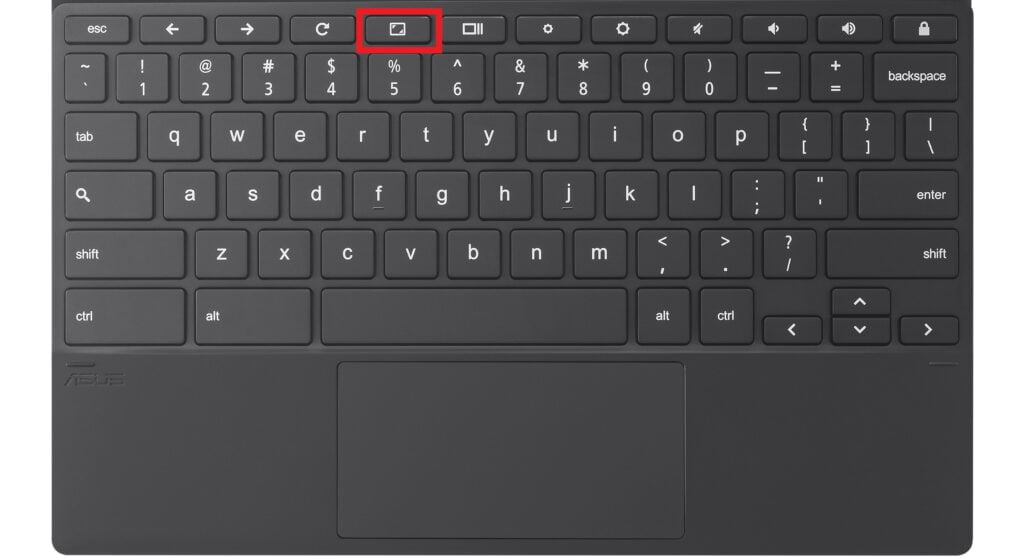
You can use a shortcut key to enable and disable full-screen mode on Google Chrome. In your Chromebook, you will get a dedicated full-screen key. Just press the key to turn on/off full-screen mode on the Chrome browser.
However, if you are using any external keyboard on your Chromebook, then you can use the “F11” function key to enable/disable full-screen mode in Chrome on a Chromebook.
You can also check the list of Chromebook shortcut keys you can use to perform various functions.
2. Using the Chrome Settings
You can also activate the full-screen mode on the Chrome browser on a Chromebook from the settings menu if you don’t want to use the keyboard shortcut. To do that, follow the steps mentioned below:
Step 1: On your Chromebook, open the Google Chrome browser. You can search it or open it from the App launcher.
Step 2: Then click on the three dots icon to open the context menu.
Screenshot not in the archive: Click on Three Dot Icon on Chrome
Step 3: Here, look for the Zoom option. Next to it, you will find a full-screen mode icon. Click on it to activate the full-screen mode on the Google Chrome browser.
Screenshot not in the archive: Full Screen on Chrome
Step 4: Now, to disable the full-screen mode, you can hover your mouse at the top of your screen. You will get the Chrome menu bar. Follow the same steps and use the icon to disable full-screen mode in the Chrome browser.
Conclusion
That’s it! This is how you can activate full-screen mode on the Google Chrome browser on a Chromebook. Activating full-screen mode in Chrome is a convenient way to enhance your browsing experience and focus on your viewing content.
Whether you prefer using the keyboard shortcut or the Chrome menu, enabling and disabling full-screen mode is straightforward. Try it out and enjoy a more immersive browsing experience in Google Chrome.

You did it!
You reached the end of this guide. Want to learn one more thing?

Written in 2022 for the ChromeOS and Chrome versions of that time, so menus may look different today. Restored from the Internet Archive copy of 2024-09-07. 4 of 5 screenshots were not saved by the archive; their captions are kept in the text.