How to Customize Google Chrome on Chromebook

The Customize Chrome side panel has been reorganised: themes and wallpapers are now under 'Change theme' in the Appearance section, and the Home button the post starts from is hidden by default. The extension and search engine steps still work.
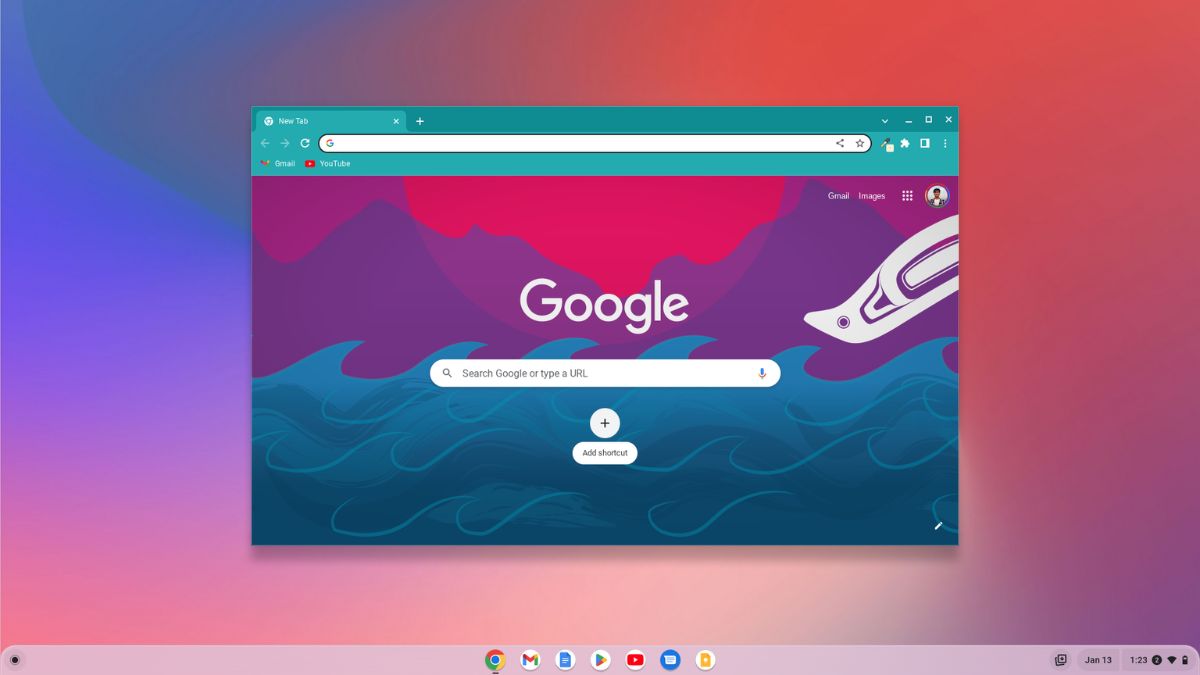
Google Chrome is at the heart of Chromebook devices. While Chrome OS provides a streamlined experience, you can further enhance and personalize your Chromebook by customizing Google Chrome, the browser that powers it all. You have full control over the look and feel of Google Chrome on your Chromebook.
In this blog, we’ll explore various ways to customize Google Chrome on your Chromebook to suit your preferences. For example, you can install extensions, change the browser’s wallpaper, apply themes, and more. So, without further ado, let’s dive into it.
How to Customize Google Chrome on Chromebook
Discover the most captivating customization options that can transform your experience with Google Chrome.
1. Change Background Wallpaper
The best way to personalize the Google Chrome homepage is by changing the background wallpaper of the browser. Here’s how you can change it:
Step 1: Click on the Home icon in the Address bar.
Screenshot not in the archive: Google Home Icon
Step 2: Now, click on the Customize Chrome button located at the bottom of the screen.
Screenshot not in the archive: Customize Chrome Button
Step 3: Click on the Appearance option.
Screenshot not in the archive: Appearance Settings on Google Chrome
Step 4: Select the Wallpaper Category from the list, or you can also update your images as a background.
Screenshot not in the archive: Wallpaper Categories
Step 5: Now, choose the background wallpaper you want to apply. Also, if you want to refresh the wallpaper daily from the same category, you can enable the Refresh daily option.
Screenshot not in the archive: Refresh Daily Content
Using the Customize Chrome option, you can also install themes. We already have a detailed guide on changing themes in Google Chrome; you can check it out.
2. Adding Extensions
Google Chrome comes with lots of unique features. However, if you want to add some extra features and enhance your browser experience, you can install extensions.
Here is how you can do so:
Step 1: Open Google Chrome and visit the Chrome Web Store.
Step 2: Here, look for the extensions that you want to install.
Step 3: Then click on the Add to Chrome button.
Screenshot not in the archive: Add Extension to Chrome Browser
Step 4: After that, a confirmation window will pop up. To confirm, click on the Add Extension button and wait for the installation process to complete.
Screenshot not in the archive: Add Extension
That’s it! This is how you can install extensions and themes on the Chrome browser. However, if you want to learn how to manage extensions, you can follow our linked guide.
3. Change the Default Search Engine
On the Google Chrome browser, the default search engine is google.com. However, if you want to change the search engine to Bing, Yahoo, DuckDuckGo, and more, then Chrome has the option to do so.
Here are the steps you can follow to do it:
Step 1: Open the Google Chrome browser.
Step 2: Click on the three vertical dots in the top-right corner of the browser window and select Settings to open the Chrome browser settings page.
Screenshot not in the archive: Chrome Settings Option
Step 3: Then, click on the Search Engine tab.
Step 4: Here, you’ll see an option labeled Search engine used in the address bar. Click on the drop-down menu and select your preferred search engine.
Screenshot not in the archive: Change Search Engine on Chrome
4. Change the Font in Google Chrome
Here are the simple steps you can follow to change the Font in the browser on your Chromebook:
Step 1: Open the Chrome Settings. For that, enter this chrome://settings/
Step 2: Now, click on the Appearance tab.
Step 3: Here, you’ll find the Customize Fonts option, click on it to open the option.
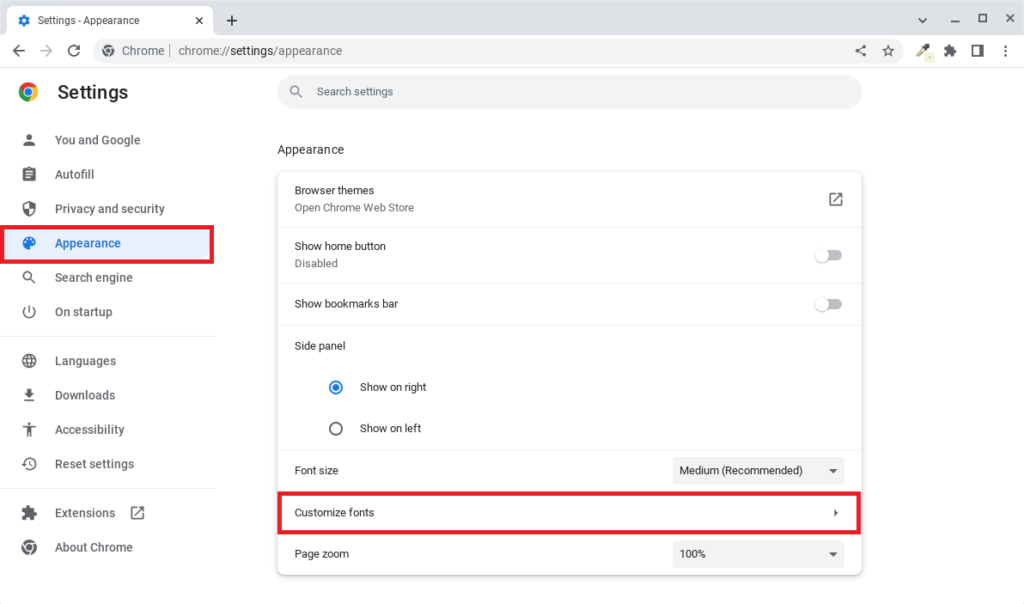
Step 4: Use the Font size slider to adjust the font size of your Google Chrome browser.
Step 5: Use the font options to change your default font style, size, and font family.
Screenshot not in the archive: Change the Font in Google Chrome
Conclusion
Google Chrome is not only one of the fastest and most reliable web browsers, but it’s also a highly customizable browser. You can follow the above-mentioned steps to do so. I hope this Chrome guide was helpful to you. Moreover, if you have any suggestions or doubts, do not hesitate to leave them in the comments section. We are always there to assist you.

You did it!
You reached the end of this guide. Want to learn one more thing?

Written in 2023 for the ChromeOS and Chrome versions of that time, so menus may look different today. Restored from the Internet Archive copy of 2024-08-08. 10 of 11 screenshots were not saved by the archive; their captions are kept in the text.